Exam Manager for teaching staff

A marking and results workspace for academics

StudyDrome Exam Manager gives teaching staff a marking and results workspace. A grading queue lists every answer awaiting a mark. Blind marking is enforced on the server, so hidden names never reach the browser. Results export in three formats: PDF, Excel and ZIP. Every mark writes a numbered history row.

What does a marking day look like?

  1. 1
    Open the grading queue. It lists the exams you mark, with the answers still waiting on each.
  2. 2
    Pick a paper. Filter to ungraded only, to one question type, or to one attempt.
  3. 3
    Mark. Award points against the scoring scale and add feedback.
  4. 4
    Re-mark when you need to. Each action appends a numbered history row.
  5. 5
    Finish. Once no manual question is outstanding, the attempt is graded for you.
  6. 6
    Open results. Read a report per exam, per sitting or per attempt, then export it.

How does the grading queue work?

The queue starts with your exams. It lists the papers you are assigned to mark, and it narrows to the ones with work outstanding. Each row carries the number of ungraded questions and the number of attempts still waiting. Open one and you get every answer awaiting a mark.

Filter

What it does

Ungraded only

Hides answers that already carry a mark

Question type

All Types, Essay, Short Answer, Fill in the Blank, File Upload

One attempt

Narrows to a single candidate attempt

Two layouts ship. A table with keyboard row navigation, and a board grouped by question so you mark the same item across every candidate in one pass. Selected rows export.

You award points against a scoring scale and add free-text feedback. The server checks the score against the question maximum and against zero, so a slip is caught at the point of entry.

Grade several answers in one action when the mark is the same. The batch is checked against every exam it touches before anything is written.

Uploaded answer files download through a signed link, so a copied URL expires rather than exposing candidate work. Question images are served the same way, and open in a lightbox.

How does blind marking stay blind?

Anonymity here is a server rule, not a screen that hides a field. An exam set to hide names from graders never looks them up.

  • The lookup never runs: The student lookup sits inside the branch that shows names. On a blind exam the name comes back as an empty string and the email comes back as null. There is nothing in the payload for a browser inspection to reveal.
  • Hidden is the shipped setting: A new exam starts with names hidden from graders, so anonymity is what you get without configuring anything.
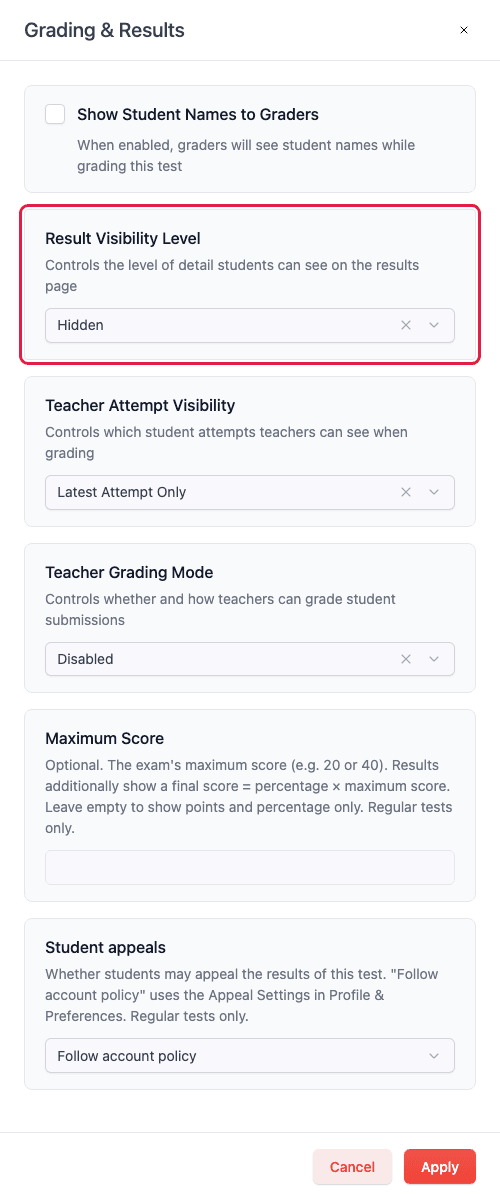
  • Switchable on a live exam: Anonymity lives on the exam itself rather than in the published snapshot. Turn it on for a paper already being sat and it applies at once, with no republish.
  • The exam office still sees names: Admins and managers see candidate names whatever the setting says. So a query about one candidate is answered by the office while the marker keeps working blind.

What does the grading history record?

Every grading action writes a new numbered row. First mark, re-mark, un-mark: each one is recorded, and nothing is overwritten.

Recorded

Detail

Who

The user who graded the answer

What

The score awarded, or none if the answer was un-graded

Why

The feedback saved with it

When

Stamped by the server as the row is created

The timestamp does not come from the browser. The server sets it. That matters when an appeal turns on the order of marking decisions.

On screen the drawer shows "Current Grade" above "Previous Changes", and each answer carries a running count of how many times it has been graded.

Re-marking is a normal action. Save a mark with no points and the answer returns to ungraded. The attempt then moves back from graded to submitted, so a stale result cannot sit on top of an unmarked question.

What results can teaching staff open and export?

Results sit apart from marking. You browse the exams you have results access to, then drill down.

Level

What you get

Per exam

A student report aggregated across every publication of that paper

Per sitting

The same report scoped to one publication

Per attempt

One candidate's attempt in full

Exports follow the same shape. A summary PDF, an Excel file and a ZIP at exam level and at sitting level. A PDF for a single attempt.

The aggregate matters when one paper has been sat several times. Read the cohort as a whole, then scope to the January sitting alone.

Which attempts you see is set on the exam: the latest attempt only, or all of them. On a retake-heavy assessment that keeps superseded scripts aside until the institution wants them shown.

What does an OSCE examiner see on exam day?

The Exams list is an examiner's door into a circuit. It groups the OSCE exams you are assigned to by event, with the station count, the rest-station count and the date or allocation for each event. The row action is "Assess".

Assessment opens full screen. There is no menu and no chrome, so nothing competes with the checklist during a five-minute station.

The screen renders the station checklist on its configured scoring scale. Critical items are labelled with the score at or below which the station fails. A Global Rating and a global comment sit alongside, and an exam can require a minimum comment length. "Previous Candidate" and "Next Candidate" move you along the queue.

Connection drops are handled. A scoring action that misses the server is queued in the browser and replayed when the network returns. A banner reports what is still pending, with a manual retry. Finishing is blocked while anything is pending, so a circuit is never closed on scores held on one laptop.

Examiners, simulated patients and observers each carry their own role on the station. Read the OSCE examiner app for the full walkthrough.

How is a teaching-staff account scoped?

What teaching staff can see and grade is set per exam by the exam office, from the Grading & Results drawer. Every one of these takes effect immediately, with no republish.

  • Marking is opened per exam: Grading by teaching staff is off, always open, or time-boxed. A time-boxed window runs from each candidate's own submission, so every script has its own deadline. Or it runs from the close of the exam window, giving the cohort one shared deadline.
  • The window fails open: A missing day limit, a missing submission date or a missing end date all let marking continue. The safe outcome is a mark that lands, never a script nobody could touch.
  • Graders are named on the exam: The exam office attaches named staff to a paper and records who assigned them and when. Every grading call re-checks that link, so marking rights follow the assignment.
  • Published scores move with a record: Re-weighting a question and voiding an item live with the published exam, in the office console. A mark cannot move without a trail, and every affected attempt is recalculated.
  • A synced score keeps one owner: Once a score reaches the student information system, changing it becomes an administrator action, and the correction re-syncs. The queue flags those rows up front, so a marker sees it before opening the answer.

Who is this for?

An academic who marks: a lecturer with essay scripts, a clinician examining an OSCE station, a course lead who needs results out of the system.

Marking runs through one service wherever it happens. Blind marking, the marking window and the grading history behave the same way in the teaching-staff app as in the exam office console. The difference is scope, not rules.

Read how publishing freezes an exam for what a snapshot holds. Read the exam office view for the side that sets your access.

Frequently asked questions

What can teaching staff do in StudyDrome Exam Manager?

Mark and report. A grading queue lists every answer awaiting a mark on the exams you are assigned to. You award points against a scoring scale, add feedback, and re-mark when you need to. A results area gives you a report per exam, per sitting or per attempt, with PDF, Excel and ZIP exports. OSCE examiners get their own scoring app.

How does blind marking work in StudyDrome?

It is enforced on the server. When an exam hides names from graders, the student lookup never runs, so the name arrives as an empty string and the email as null. Nothing in the response can be inspected to recover them. Hidden is the shipped setting, and it can be switched on a live exam without republishing.

Can a mark be traced back after the exam?

Yes. Every grading action writes a new numbered row recording who graded, what score, what feedback and when. The timestamp is set by the server, not the browser. Nothing is overwritten, so an appeal can reconstruct the full sequence of decisions on one answer. The drawer shows the current grade above the previous changes.

How does an examiner score an OSCE station?

In a full-screen app with no menu and no chrome. It renders the station checklist on its scoring scale. Critical items are labelled with the score at or below which the station fails. A Global Rating and a comment are captured too. Previous and Next move between candidates. Scores that miss the network are queued and replayed.

How long can teaching staff keep marking after an exam?

The exam office decides per exam. Marking is off, always open, or time-boxed. A time-boxed window starts either at each candidate's submission or at the close of the exam window, and runs for a set number of days. Every ambiguous case resolves in favour of marking, so a script is never stranded unmarked.

Book a pilot

Bring one paper and the staff who mark it. We will open the grading window, hide the names, and let them mark a real script end to end.